We’ve all been there. You just spent a small fortune on the latest Samsung Galaxy S26 or a shiny new Pixel 10. You were promised “Magic Erasers,” “Live Translations,” and a phone that “thinks for you.”
But by 6:00 PM, you’re staring at a 12% battery icon and wondering where it all went wrong.
The truth? Your phone is exhausted. It’s basically running a marathon in its “sleep,” using AI to index your photos, listen for wake words, and predict your next move. In 2026, the biggest battery drain isn’t your screen—it’s AI Fatigue.
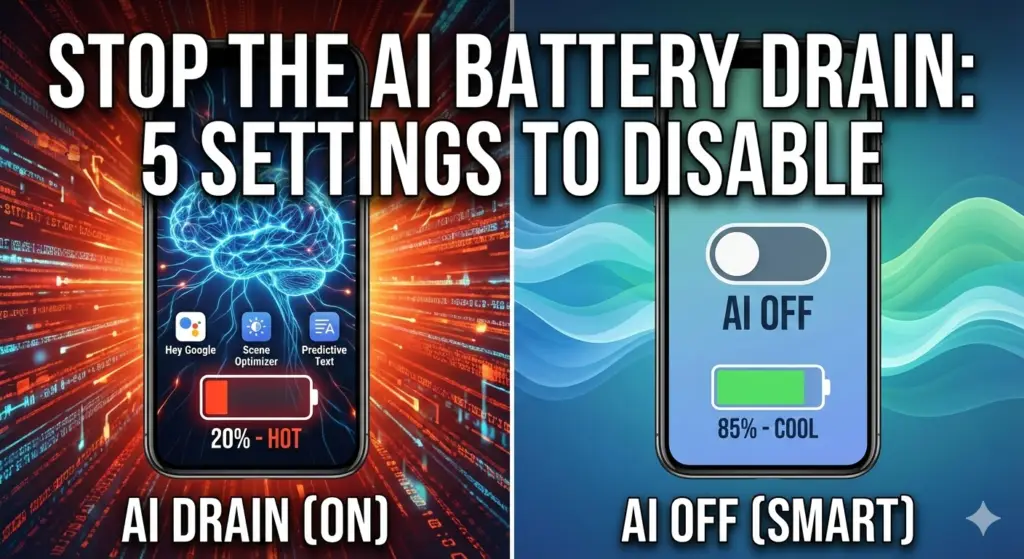
If you want your phone to actually last until bedtime, here are the 5 “Smart” features you should kill right now.
1. The “Always Listening” Butler (Gemini & Google Assistant)
In 2026, Google’s Gemini has mostly replaced the old Assistant. It’s smarter, sure, but it’s also a battery hog. If “Hey Google” or “Ok Google” is always on, your phone’s microphone and a specific part of its processor are always awake, waiting for you to speak.
- The Fix: Go to Settings > Google > Search, Assistant & Voice and turn off “Hey Google.”
- The Result: You’ll likely gain an extra 5-8% battery back. If you need the AI, just long-press the power button. It doesn’t need to be listening to your TV in the background.
2. “Circle to Search” – The Background Stalker
It’s a cool party trick, but Circle to Search (and similar visual lookup tools) keeps a system-level process running to “read” your screen at all times.
- The Fix: On most Android 16 phones, head to Settings > Display > Navigation Bar and toggle off “Circle to Search.”
- Why it matters: Every time you switch apps, the AI “indexes” what you’re looking at just in case you want to search for it. Turning this off lets your processor relax.
3. AI Scene Optimizer (The “Fake” Camera)
Do you really need your phone to “recognize” that you’re looking at a plate of biryani to make the colors pop? Modern AI camera features run heavy processing before you even take the photo.
- The Fix: Open your Camera app, go to Settings, and turn off Scene Optimizer or AI Enhancements.
- The Benefit: Your camera app will open faster, and your phone won’t get as hot during long photo sessions.
4. Predictive Text & AI Grammar Checkers
In 2026, keyboards like Gboard and Samsung Keyboard don’t just suggest words; they try to rewrite your entire sentence using local AI models.
- The Problem: Your phone is running a “Mini-GPT” every time you send a WhatsApp.
- The Fix: Go to Settings > General Management > Keyboard Settings and disable “Predictive Text” or “AI Writing Assistant.” Your brain knows what you want to say—let your phone stop guessing.
5. Smart Sensing (The “Gaze” Detection)
Many new phones use the front camera to see if you’re still looking at the screen so it doesn’t dim. It sounds smart, but it means your selfie camera is essentially “blinking” every few seconds to check for your eyes.
- The Fix: Search for “Smart Stay” or “Screen Attention” in your Settings and turn it off. Set your screen timeout to 1 minute instead. It’s much more efficient.
📈 The “Under” Reality Check: Does AI actually help?
| Feature | Battery Cost | Is it worth it? |
| Hey Google | High | No (Use button shortcut instead) |
| AI Wallpapers | Medium | No (Static images are better) |
| Live Translate | Very High | Only when traveling! |
| AI Battery Saver | Low | Keep this ON (It’s the only AI that helps) |
My Advice: The “Weekend Test”
If you’re skeptical, try this: Disable these five features this Saturday. See how much battery you have left by Sunday morning. Most users on the GadgetUnder team reported a 15-20% improvement in total battery life.
AI is supposed to work for you—not the other way around. Don’t let a “smart” phone leave you with a “dead” battery.
Also Read – Why Your Phone’s Battery Health is Dropping Fast: The 2026 “Heat Trap”