Introduction
Your laptop takes 3 minutes to start. Opening Chrome feels like a chore. Switching between apps makes the whole machine groan. You’ve heard that an SSD will fix this. Maybe someone told you it’ll “feel like a new laptop.”
They’re right. But before you buy anything, you probably have questions that nobody seems to answer clearly: Will you lose your data? Will it void your warranty? Which type of SSD do you even need? Is it worth spending ₹4,000–5,000 on a laptop that’s already 4–5 years old?
This guide answers all of it — in plain language, without hiding behind jargon, and with the specific context that matters for buying and upgrading laptops in India.
The Short Answer First
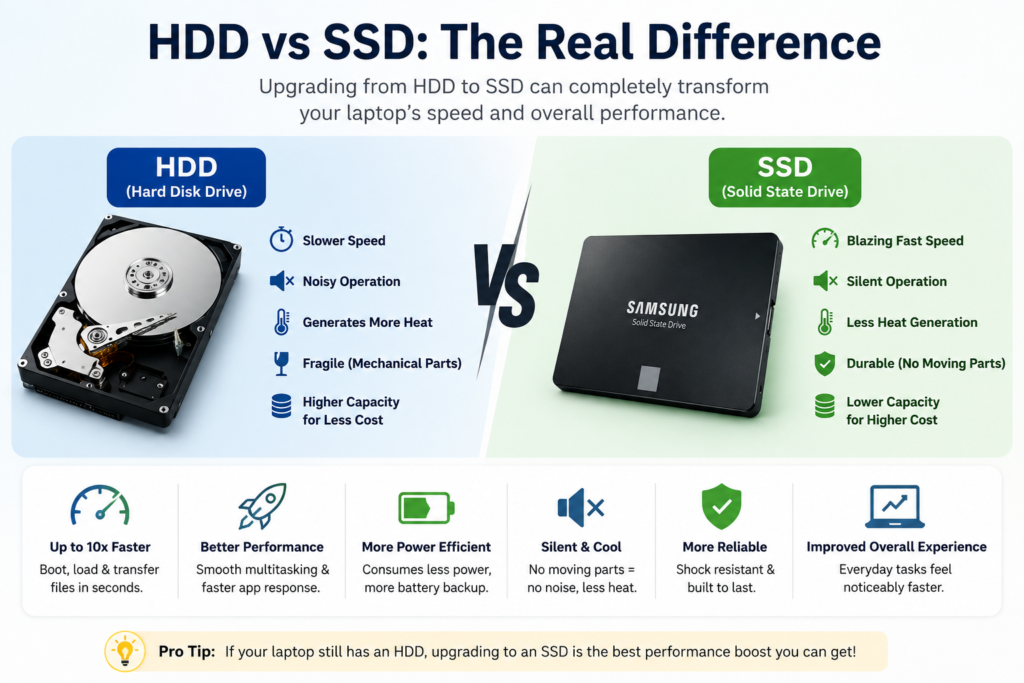
Yes, upgrading from HDD to SSD is almost always worth it. If your laptop currently runs on a spinning hard drive (HDD), replacing it with an SSD is the single highest-impact upgrade you can make. Boot times drop from 2–4 minutes to under 20 seconds. Apps open almost instantly. The laptop stops making that grinding noise. The battery lasts a bit longer too, since SSDs use less power than HDDs.
No other upgrade — not more RAM, not a processor — will change your daily experience as dramatically for the money.
The rest of this guide tells you how to do it right.
Step 1: Is Your Laptop Actually Running on an HDD?
Before anything else, confirm what storage your laptop currently uses. Many laptops sold after 2019 already have SSDs. If yours does, this upgrade doesn’t apply.
How to check in Windows:
- Press
Windows + R, typemsinfo32, press Enter. - In the left panel, click Components → Storage → Disks.
- Look at the description. If it says “ST” or “WD” followed by numbers and mentions “RPM”, it’s an HDD. If it says “SSD” or shows no RPM figure, you likely already have one.
Alternatively:
- Open Task Manager (Ctrl + Shift + Esc).
- Click Performance → Disk.
- The graph will say “Disk” at the top and show the drive type.
You can also simply listen. HDDs make audible clicking and spinning sounds when in use. SSDs are completely silent.
Step 2: Understand Which SSD Your Laptop Can Accept
This is where most people get confused — and make expensive mistakes. There are three types of SSDs commonly sold in India, and they are not interchangeable.
Type 1: 2.5-inch SATA SSD (the drop-in replacement)
This is a flat, rectangular drive roughly the size of a matchbox. It connects via a SATA cable, the same kind your current HDD likely uses. If your laptop has a 2.5-inch hard drive in it right now, a 2.5-inch SATA SSD will fit in the exact same slot.
Who it’s for: Laptops made before 2018–2019 that don’t have an M.2 slot. Very common in older HP, Dell, and Lenovo budget models.
Speed: Up to ~550 MB/s sequential read. Roughly 4–5x faster than a typical 5400 RPM laptop HDD. Feels transformative for everyday use.
Cost in India (2026): ₹3,800–₹5,500 for 512GB from reputable brands.
Type 2: M.2 SATA SSD
This is a small, rectangular stick about the size of a stick of gum that plugs directly into an M.2 slot on your laptop’s motherboard. Despite its different physical form, it uses the same SATA protocol as Type 1 — so the speed is similar.
Who it’s for: Laptops with M.2 slots that only support SATA (not NVMe). Common in mid-range laptops from 2016–2020.
Speed: Same as 2.5-inch SATA — up to ~550 MB/s.
Trap to avoid: Buying an M.2 NVMe drive and finding your slot only supports M.2 SATA. The drive physically fits but won’t work, and getting a refund on an opened SSD in India can be painful.
Type 3: M.2 NVMe SSD (the fast one)
Same physical stick form factor as M.2 SATA, but it uses the PCIe interface instead of SATA. This is significantly faster — 3,000–7,000 MB/s for modern drives vs 550 MB/s for SATA. For everyday use like web browsing and documents, you may not notice this difference. For gaming, video editing, large file transfers, and programming, you will.
Who it’s for: Laptops made from 2018–2019 onwards that have M.2 PCIe slots. Almost all mid-range and above laptops sold in India today have this.
Cost in India (2026): ₹4,200–₹6,500 for 512GB, ₹7,000–₹10,500 for 1TB from reputable brands.
Step 3: How to Find Out Which Type Your Laptop Supports (Without Opening It)
Method 1: Check the manufacturer’s spec sheet
Go to the official product page for your exact laptop model. Every major brand — HP, Dell, Lenovo, ASUS, Acer — lists storage specifications. Search for your model name + “specifications” on Google. Look for terms like:
- “M.2 PCIe NVMe” → supports Type 3 (NVMe)
- “M.2 SATA” → supports Type 2 only
- “2.5-inch SATA” → supports Type 1
Method 2: Use CPU-Z or Speccy software (free)
Download either from their official websites. Install, run, and go to the “Storage” tab. It will show what drive is currently installed and through what interface. This tells you what type of slot is occupied — useful if you want to add a second drive, not replace the first.
Method 3: Look up your model on the brand’s service manual
Go to your laptop brand’s support site and search for your model’s “Hardware Maintenance Guide” or “Service Manual” (Lenovo and HP publish these publicly). The manual’s storage section will explicitly say what M.2 slots are present and what interfaces they support. This is the most reliable method.
Method 4: Check physically (only if you’re comfortable opening the laptop)
Open the back panel. The M.2 slot will often have labels printed next to it — “PCIe/NVMe” or “SATA”. The slot key type also tells you: an M-key slot (single notch on the right side) supports NVMe. A B+M key slot (two notches) usually supports SATA only, though some support both.
The Big Fears — Addressed Honestly
These are the actual questions Indian users ask most, and deserve direct answers rather than corporate hedging.
Fear 1: “Will I lose all my data if I replace the HDD with an SSD?”
No — if you clone the drive first. Yes — if you just pull the HDD out and pop the SSD in.
The process that protects your data is called cloning: making an exact copy of your old HDD onto the new SSD before you physically swap them. When done correctly, the cloned SSD boots Windows exactly as your old HDD did — same files, same apps, same passwords, same desktop background — just much faster.
How cloning works:
You temporarily connect your new SSD to your laptop via a USB adapter (a small, cheap cable — ₹300–600 on Amazon, search “USB to M.2 SSD enclosure” or “USB to SATA adapter”). Then you run free cloning software that copies everything bit for bit.
Free cloning software options:
- Macrium Reflect Free — the most reliable free option; clear interface
- Samsung Data Migration — works only with Samsung SSDs, but excellent if you bought one
- WD Acronis True Image — only for WD brand drives
After cloning, you physically swap the drives, boot from the SSD, and verify everything works before doing anything with the old HDD. Keep the old HDD for a few weeks as a backup, then format it for extra storage or sell it.
The alternative — fresh install: Instead of cloning, install Windows fresh on the new SSD. You lose installed apps and settings but get a clean, fast system without any accumulated junk. For laptops that are several years old, this is often the better approach. Windows 10 and 11 can be downloaded and installed for free from Microsoft’s website if you already have a valid license (your laptop’s product key is usually tied to the motherboard and auto-activates).
Fear 2: “Will upgrading my SSD void my laptop’s warranty in India?”
Officially, probably not. In practice at Indian service centers, it’s complicated.
Globally, most laptop manufacturers — HP, Dell, Lenovo, ASUS — explicitly classify RAM and storage as “user-serviceable” components. Their service manuals even include instructions for removing and replacing these parts. Opening the back panel to replace these specific components is not supposed to void the warranty.
However, as several Indian users on Quora and support forums have documented, local Indian service center behavior can differ from official policy. Some centers will use physical evidence of the back panel being opened as a reason to deny warranty claims on unrelated issues (like a screen problem or charging port failure). This isn’t consistent or legally defensible, but it happens.
Practical approach for India:
Before you open your laptop:
- Check your brand’s service manual — if it has a dedicated section for storage replacement with steps, it’s officially user-serviceable.
- Call the brand’s India customer care and ask directly. Note the date, time, and representative’s name.
- For laptops still in warranty, consider having the SSD installed at an authorized service center — they’ll typically do it, often at low or no labor cost.
- For laptops out of warranty, open freely — warranty is no longer a concern.
One additional nuance: damage you cause during the upgrade is not covered by any manufacturer. If you crack a ribbon cable while opening the back panel, that’s on you. The upgrade itself (adding a drive) is typically fine. Collateral damage is not.
Fear 3: “Is it worth upgrading an old laptop — say, 5–7 years old?”
It depends on what’s wrong with the laptop — but usually yes.
An SSD upgrade is worth it if:
- The laptop’s only real problem is slowness on boot, app launch, and file operations
- The CPU is not completely underpowered for your tasks (Core i3 6th gen and above is generally usable for everyday work)
- The RAM is at least 4GB (8GB recommended for comfortable 2026 use)
- The screen, keyboard, and charging port are all working
An SSD upgrade is NOT worth it if:
- The motherboard, display, or GPU is failing
- The CPU is truly ancient (pre-2015 low-power Celeron/Pentium that struggles with modern Chrome)
- The laptop has structural damage or a dead battery that won’t be replaced
- You need the laptop for heavy video editing or gaming — an old CPU+GPU will remain the bottleneck regardless of storage speed
The rough math: A 512GB SSD in India costs ₹4,000–5,500 in 2026. If this extends a usable laptop’s life by 2–3 years, you’ve deferred a ₹35,000–50,000 laptop purchase. Even at the high end of SSD pricing, this is a very good deal.
Fear 4: “I bought an M.2 NVMe SSD but my laptop says ‘not detected.’ What happened?”
This is one of the most common post-upgrade problems, and it’s almost always one of four things:
Reason 1: The slot only supports SATA, not NVMe. An NVMe drive in a SATA-only M.2 slot will physically fit but not be detected. This is why checking compatibility before buying is essential. If this happened to you, return the NVMe drive and buy an M.2 SATA SSD instead.
Reason 2: The drive isn’t fully seated. M.2 drives insert at a ~30-degree angle, then press flat and are held by a small screw. If the screw isn’t tightened or the drive is slightly loose, it won’t make contact. Remove and reinsert firmly.
Reason 3: BIOS is in RAID mode instead of AHCI. Restart, enter BIOS (usually F2 or Delete key at startup), find the storage controller settings, and switch from “RAID” to “AHCI.” Save and restart. Important warning: If Windows is already installed on another drive in RAID mode, switching to AHCI without preparation can make Windows unbootable. Only switch modes before installing Windows or as part of a fresh setup.
Reason 4: The new SSD hasn’t been initialized yet. A brand-new SSD won’t automatically appear in File Explorer even if detected by the system. Open Disk Management (right-click Start → Disk Management), find the new unallocated disk, right-click it, and initialize it. Then create a volume and assign a drive letter.
Fear 5: “Should I clone or do a fresh Windows install?”
Both work. The right choice depends on your situation.
Clone if: Your Windows installation is clean, apps are set up the way you like, and the thought of reinstalling everything is overwhelming. Cloning takes 45–90 minutes total and preserves everything.
Fresh install if: Your laptop has been running for 3+ years with accumulated software, trial apps, toolbars, and cruft. A fresh install on the new SSD will be noticeably faster than a clone of a bloated old system. You get a clean slate with maximum speed.
One thing cloning can’t fix: If your current Windows installation has registry errors, corrupted drivers, or malware, these all clone over faithfully. The SSD will be faster, but the underlying problems move with you.
Fear 6: “The SSD I received shows less storage than advertised. Is it fake?”
Almost certainly not fake — this is normal and affects every storage device made by every manufacturer.
Drive makers measure in decimal: 1 GB = 1,000,000,000 bytes. Windows measures in binary: 1 GiB = 1,073,741,824 bytes.
A “512 GB” drive therefore shows as roughly 476 GB in Windows. A “1 TB” drive shows as roughly 931 GB. This is universal, consistent, and not a defect or deception. Every SSD review, spec sheet, and box has always been rated in decimal.
Fear 7: “My SSD is getting very hot. Is something wrong?”
M.2 NVMe SSDs — especially PCIe 4.0 models — generate significant heat under sustained workloads. Running a large file copy, installing a game, or doing sustained video rendering can push drive temperatures to 70–80°C, which is within operating spec for most drives but feels alarming.
What matters is whether the drive is throttling — intentionally slowing down to protect itself from heat damage. You can check this with free software like CrystalDiskInfo, which shows drive temperature and flags throttling.
If throttling is occurring:
- Ensure the M.2 heatsink (if your drive came with one) is installed
- Make sure the bottom panel of the laptop is clean and not blocking airflow
- Consider a laptop cooling pad for sustained heavy workloads
For everyday use — web browsing, documents, light video — most M.2 drives run at 40–55°C, which is perfectly normal.
The Actual Upgrade Process (Step by Step)
What you need:
- Your new SSD
- A USB-to-SSD adapter/enclosure (₹300–600 on Amazon — search for your drive type: “USB 3.0 to M.2 NVMe enclosure” or “USB to 2.5-inch SATA adapter”)
- A small Phillips screwdriver (the back panel screws are typically #0 or #1)
- Cloning software (Macrium Reflect Free — download from macrium.com before starting)
- 1–2 hours of uninterrupted time
Step 1 — Back up your important data first. Even though cloning should preserve everything, this is insurance. Copy your Documents, Desktop, Downloads, and Pictures to an external drive or upload to Google Drive before touching anything.
Step 2 — Connect the new SSD externally via USB. Plug the USB adapter into your laptop. The new SSD should appear as an uninitialized disk in Disk Management. You don’t need to initialize it for cloning — the cloning software will handle the formatting.
Step 3 — Clone using Macrium Reflect. Open Macrium Reflect → Click “Clone this disk” under your source HDD → Select the new SSD as the destination → Click “Next” → “Finish” → “Run Now.” The process takes 30–90 minutes depending on how much data is on the old HDD.
Step 4 — Physically swap the drives. Shut down completely. Unplug the charger. Open the laptop’s back panel (YouTube has tutorials for virtually every laptop model — search “[your exact laptop model] SSD upgrade”). Remove the old HDD. Install the new SSD.
Step 5 — Boot and verify. Power on. Windows should boot from the new SSD automatically. Verify that all your files, apps, and settings are intact. Check the drive appears correctly in Disk Management.
Step 6 — Keep the old HDD temporarily. Don’t format or destroy it immediately. Run the new SSD for a week, make sure everything works, and only then wipe the old HDD for use as external storage.
Choosing Between SATA and NVMe for Everyday Indian Use
This question comes up constantly and the honest answer is: for most everyday use, the speed difference between a SATA SSD and an entry NVMe SSD is not noticeable.
Where you do notice the difference:
- Transferring many large files (video, raw photos, large backups)
- Game loading times with DirectStorage-enabled games
- Compiling code or running large database queries
- Video editing with high-resolution footage
Where you don’t notice:
- Boot time (both take 10–20 seconds)
- Opening Office, Chrome, WhatsApp Web, Zoom
- Downloading and installing apps
- Everyday multitasking
The practical rule for India in 2026: If your laptop supports NVMe and the price difference is under ₹800–1,000 for the same capacity, go NVMe — it’s future-proof. If NVMe costs significantly more and your use is general/everyday, SATA is completely fine and saves you real money given current pricing.
Frequently Asked Questions
Q: Can I add an SSD to my laptop without removing the HDD — have both drives? Many laptops have only one storage slot, so you’d need to replace the HDD. However, some laptops have both an M.2 slot and a 2.5-inch bay, in which case you can add the SSD alongside the existing HDD. Check your laptop’s spec sheet for this. Some older laptops also have an optical drive (DVD) bay that can be replaced with a “caddy” (₹300–500 on Amazon) to fit a 2.5-inch SSD — effectively giving you a second drive slot.
Q: Which brand of SSD should I buy in India? For reliable warranty support and genuine NAND quality in India: Samsung, WD (Western Digital), Crucial, and Kingston are safe choices. All have established warranty infrastructure. Avoid unbranded sellers and be cautious with very new brands without India-specific warranty centers. Lexar is legitimate but their India distribution has been inconsistent in 2025–2026.
Q: How long does an SSD actually last? A typical consumer SSD in 2026 has a rated endurance of 200–600 TBW (Terabytes Written). For everyday laptop use — maybe 10–30 GB of writes per day — you’d hit 200 TBW in roughly 18–54 years. In practice, SSDs are more likely to become obsolete or fail from other causes (capacitor failure, firmware bugs) before you exhaust the NAND cells. Lifespan is not a genuine concern for typical users.
Q: My laptop is a Lenovo/HP/ASUS [budget model]. How do I know if it supports NVMe? Search “[your exact model name] + specifications” on Google. On the official product page, find the “Storage” section. It will say either “M.2 PCIe NVMe” (supports fast NVMe) or “M.2 SATA” or “2.5-inch SATA” (supports only SATA). If unsure, call the brand’s India customer support line with your serial number.
Q: Can I do this myself or should I take it to a shop? If you’re comfortable watching a YouTube tutorial and using a screwdriver, you can do it yourself — SSD installation is genuinely one of the most beginner-friendly laptop upgrades. If you’re not comfortable, any local computer repair shop will do this for ₹500–1,500 in labor. Make sure you supply the SSD yourself from a verified source so you know exactly what’s going in.
Q: What if my new SSD isn’t showing the full capacity in Windows? First, check if the partition layout cloned correctly. Open Disk Management — if you see “Unallocated” space next to your drive letter, right-click the partition and select “Extend Volume” to claim all the space. This commonly happens when cloning a smaller HDD to a larger SSD.
Q: I don’t have money for a new SSD right now. Can I at least make my HDD faster? Partially. Defragmenting the HDD (use Windows’ built-in Defragment tool) can help, but the improvement is modest. Disabling startup programs (Task Manager → Startup tab → disable everything you don’t need immediately) makes a bigger difference. Adding RAM (if your laptop only has 4GB) can reduce how often Windows uses the slow HDD as virtual memory. But none of these come close to the impact of an SSD.
Q: Is there any risk of data loss during cloning? Cloning itself doesn’t touch the source drive — it reads from the HDD and writes to the SSD. Your original HDD remains untouched and unchanged throughout. The only data risk is if the cloning is interrupted midway (power cut, software crash) and the partial clone isn’t functional. This is why having a backup before starting is good practice even though it’s rarely needed.
Conclusion
If your laptop is running on an HDD in 2026, upgrading to an SSD is one of the best decisions you can make for it. The transformation is immediate and dramatic — the same machine that frustrated you every morning becomes responsive, fast, and actually pleasant to use.
The process has some nuance — the right SSD type for your laptop, the warranty question, the cloning vs. fresh install decision — but none of it is beyond a careful first-timer who spends 30 minutes reading before touching anything.
The summary in one paragraph: Check what slot your laptop has (2.5-inch SATA, M.2 SATA, or M.2 NVMe). Buy the right type from a reputable brand. Clone your data using free software before swapping drives. If your laptop is in warranty, consider getting it done at an authorized service center. Keep the old HDD as a backup for a week after the upgrade. Done.
Your laptop isn’t broken. It’s just running on 2012 storage technology in 2026.
Do Read : “SSD Price India 2026″ article → “SSD upgrade guide“